المشهد · شرح
How to Blend Two Images with AI
Upload a subject and a scene, and AI blends two images into one new picture. The steps, which photo goes first, pairs that work, and what it costs.
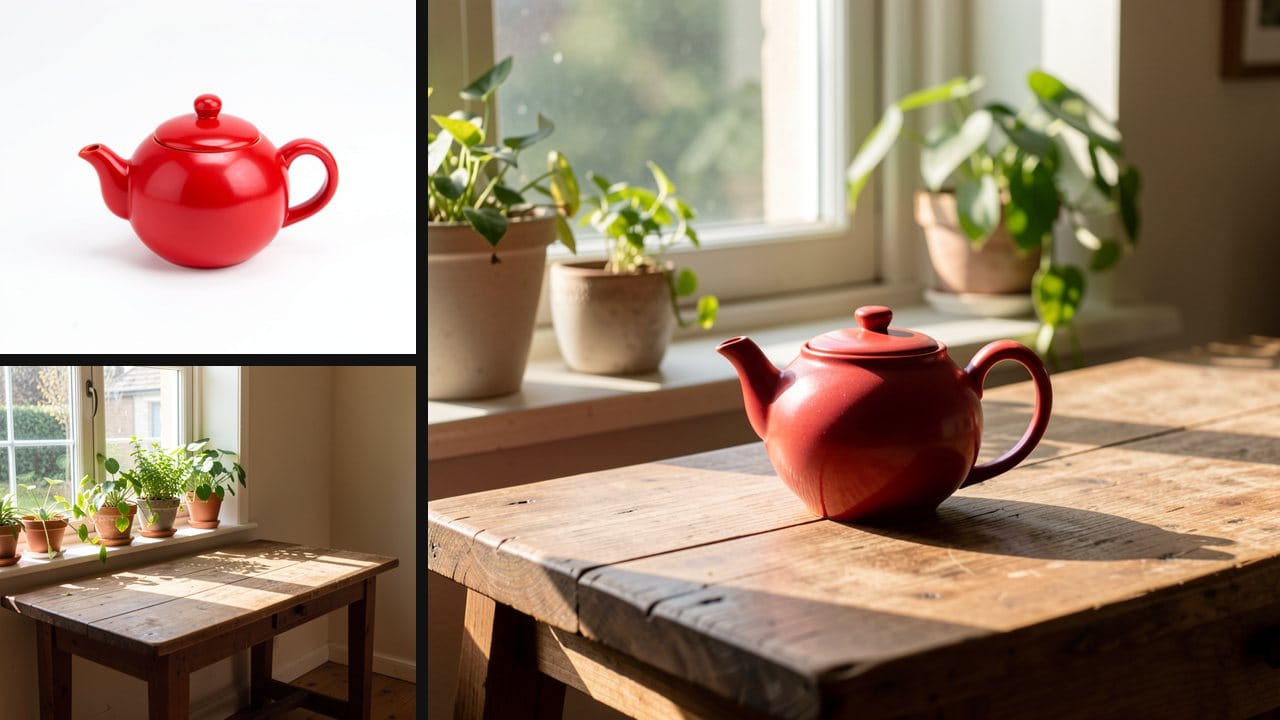
To blend two images with AI, upload a photo of your subject and a photo of a scene, and the AI draws one new picture with the subject in that scene. On Eidora's AI Image Blender the light and color are matched for you, and there is no prompt to write. It usually takes 20 to 60 seconds.
Each image uses 4 credits. A new account starts with 6 credits, no credit card required, and free results carry an eidora.io watermark. After that, a new account can buy 40 credits for $1.99 once, within 72 hours of signing up.
The pictures in this guide are labeled SAMPLE. They are illustrations we made for this article, not results from the tool.
Why the upload order matters
The first image is the subject: a person, a product, or whatever you want to keep. The second image supplies the scene, setting or texture. The AI places the main subject of the first image into the second, so if you swap them, the result changes.
This is also why the result is not one picture pasted on top of another. The tool uses both images as references and draws a single new image, whose size is set by the model.
How to blend two images, step by step
Step 1. Open AI Image Blender.
Step 2. Upload the subject photo first. Each image can be a JPG, PNG, WebP or GIF up to 10MB.
Step 3. Upload the scene or texture photo second.
Step 4. Press Generate. It usually takes 20 to 60 seconds, a little longer at busy times. The blend is made with Seedream 4.5, ByteDance's image model.
Step 5. Look closely at the result, then download it. If it isn't what you wanted, swap the two images or try a different pair. Each run uses another 4 credits.
This page has no text box or style options, so the pair and the order are how you steer the result.
Good pairs to try
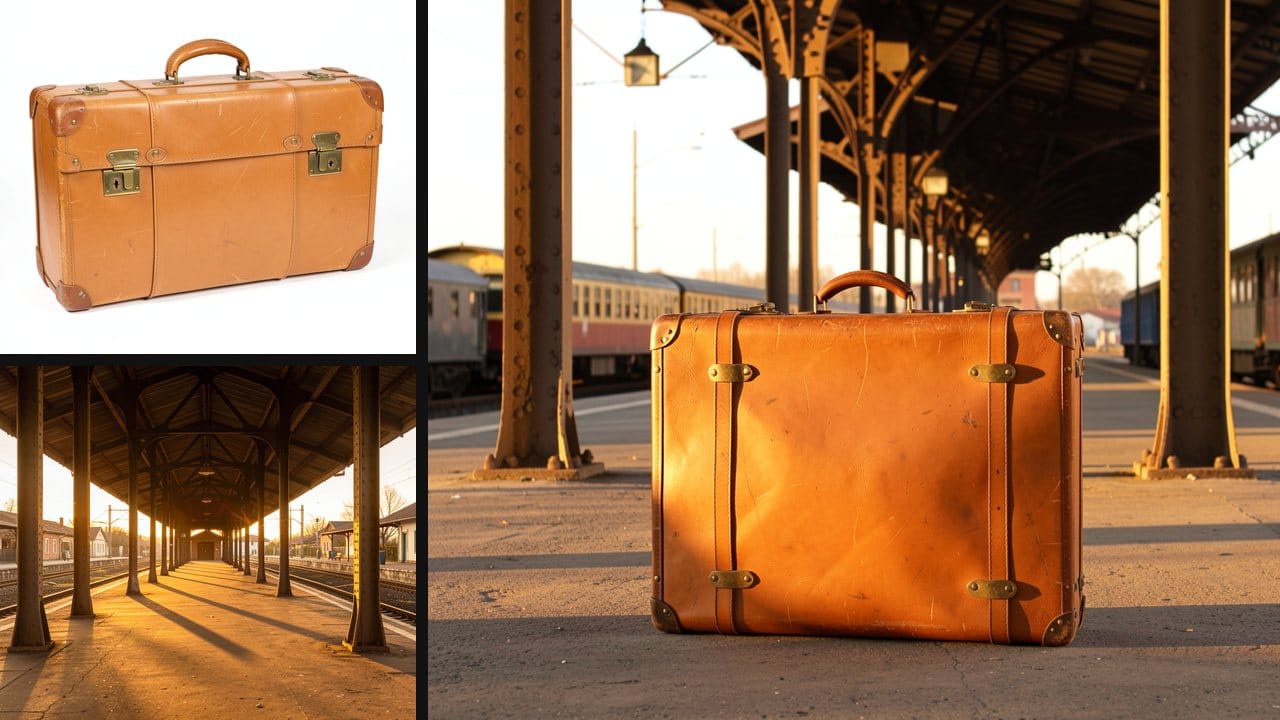
A subject and a place. A person or an object plus a room, a street or a piece of concept art. This is handy for a mood board, or for seeing an idea before a shoot.
A product and a lifestyle scene. A clean product shot plus a table or a room. Check that the color and small details still match the real item before you use the picture, because the AI draws the product again.
A photo and a texture. A photo plus a fabric swatch or a painting, when you want the second image to influence the look of the first. The result can be surprising, so expect to try more than one pair.
Tips for a better blend
• Keep one clear subject in the first image. The AI works from the main subject, so a busy group shot gives it less to go on.
• Use a readable second image. A clear room, landscape or texture works better than a cluttered one.
• Use even light if a face matters. Then check that the person still looks like themselves.
• Change the pair, not the wording. There is no prompt, so swap the order or replace one of the photos.
When another tool fits better
• You want to repaint a photo in another image's style. The AI Image Combiner has a Style Merge mode that keeps the composition of the first image and repaints it in the style of the second.
• You have one photo and can describe the scene. The AI Background Changer puts the person or product into a scene you describe in one sentence, such as "a sunset beach".
• You want exact control over the edges. Use a photo editor. Put the two images on separate layers, add a layer mask to the top one, and paint the mask with a soft brush. It takes longer, but nothing gets redrawn.
What it costs
• First blend: a new account gets 6 credits, no credit card required. One blend uses 4, so 2 are left over, and the result has a watermark.
• New member pack: 40 credits for $1.99, once, within 72 hours of signing up. That is 10 blends.
• Credit packs: from $4.99 for 100 credits.
• Plans: from $9.9 a month.
• No badge once you have paid: results from a plan or any credit pack carry no eidora.io badge.
Common questions
Which image should I upload first?
The subject, such as a person or a product. The scene, setting or texture goes second.
Can I tell it how to blend them?
Not with words. This page has no text box. To change the result, swap the order or try a different pair.
Do I need design skills?
No. You upload two images and press Generate.
Can I use the result commercially?
That depends on your rights in the photos you upload, the consent of anyone pictured, applicable law, and the model provider's current terms. An Eidora plan changes generation limits and history retention. It does not grant extra intellectual-property rights.
Are my images private?
Your uploads and results are saved privately to your history, and only you can open them. To make the picture, your input is sent to the AI model provider that runs it. Eidora does not sell your content or use it to train AI models.